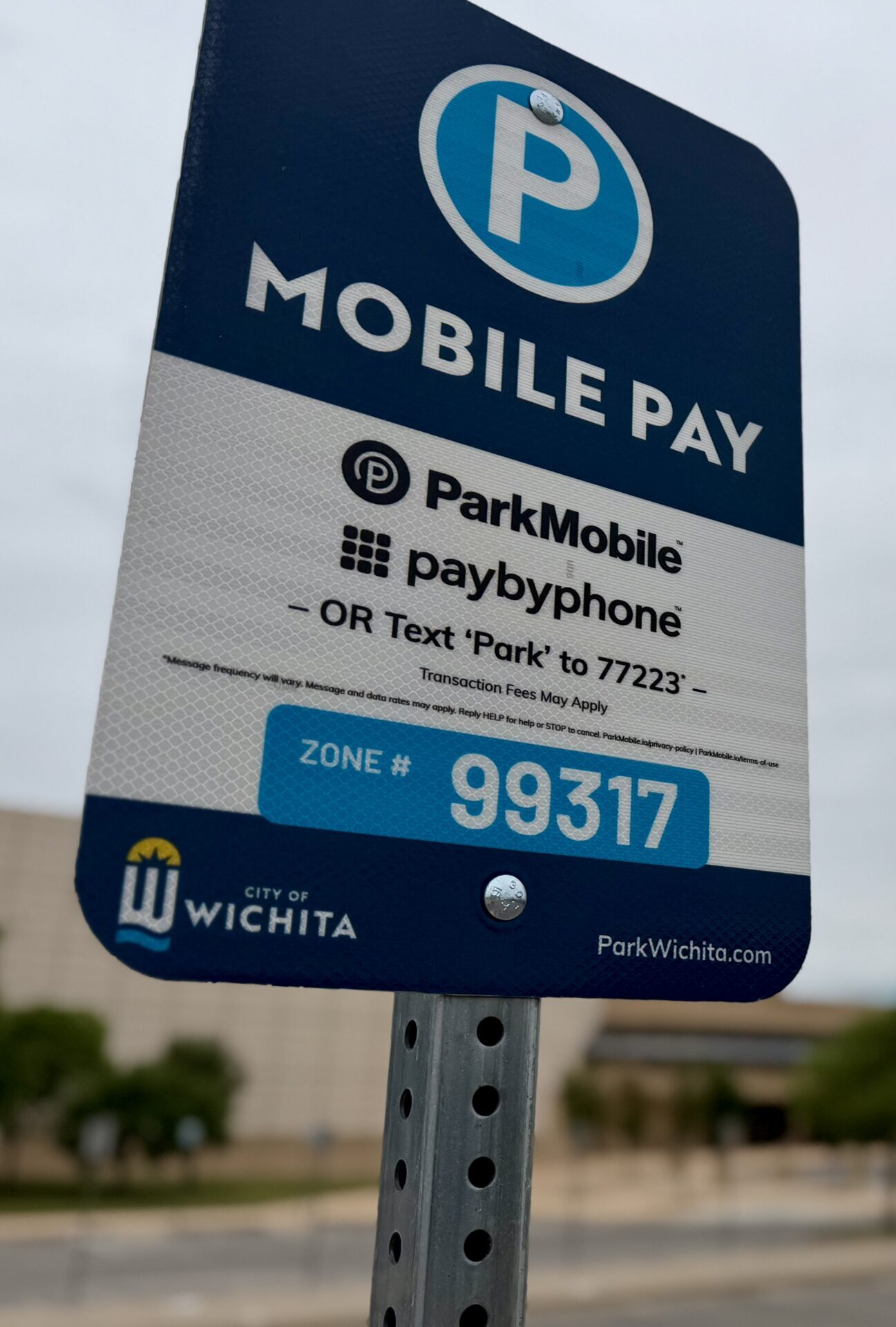
In 2023, Century II started using ParkMobile’s digital payment system rather than parking meters in and around its lot at Main and Waterman. And late last year, the city instituted paid parking for street spaces, garages and other city-owned lots across downtown Wichita.
The Active Age has been hearing from local seniors who find the new setup confusing. Some said they’ve stopped going downtown as a result.
This article should help.
Here are step-by-step instructions for three different approaches you can take to pay for parking — including one that doesn’t require a smart phone, debit card or credit card.
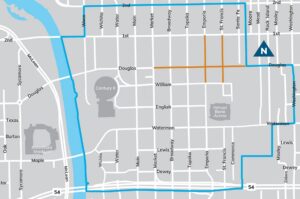
Where in downtown is payment required? Generally, it’s for street parking, lots and city-owned garages in the downtown corridor (see map at right). Old Town and Delano are excluded. A good rule of thumb: If you see a ParkMobile sign nearby, you probably need to pay.
Payment is generally required between 8 a.m. and 6 p.m. Monday through Thursday and from 8 a.m. to 9 p.m. Friday and Saturday. Customers cannot pay for a portion of an hour or pay less than $1.
Vehicles with visible and valid ADA or Disabled Veterans placards, tags or license plates can park for free in any space as long as event parking rates are not in effect. Event parking will be advertised with special signage.
Method 1: Download the ParkMobile app
This method may be best for those who park downtown frequently. It takes a few minutes to set up (steps 1-7) but then is the quickest method to use because the app stays on your phone and saves your payment information. If your smart phone’s operating system won’t support the ParkMobile app, try Method 2 or Method 3.
1. Type this website into the internet browser on your phone (Safari, Google, etc): parkmobile.io
2. Follow instructions for downloading and installing the app.
3. Start the setup: You’ll need to choose whether you want to set up your account by using your email, by using your AppleID, by using your Google Account or by using your phone number. Then, click the button that says you agree to the terms of service.
4. Enter the security code: The app will immediately email or text you a six-digit security code to make sure you are really you. Find the code in your email or text messages and enter the code. Then hit the green button, which will take you to the ParkMobile app.
5. Enter your phone number: After you do, you’ll get a second six-digit security code, this one via text. Enter it as well.
6. Fill in your license plate number: Then, click on the box that reads “state/province.” Drag down to “Kansas” and click on it.
7. Choose how to pay: You will be asked to choose whether you want to subscribe to EasyParkGo, which costs $3.99 per month (there’s a 30-day free trial). Without it, you will pay a 35-cent service fee each time you use the app.
8. Identify your zone: Once you’ve parked and opened the app, you will be asked to identify which zone you are parked in. Look for the ParkMobile sign posted closest to your car and enter the parking zone. The sign is blue and-white and has a big P at the top
9. Say how long you’ll park: You can slide the numbers up and down to pick how many hours you want to park. It generally costs $1 per hour or $5 all day (plus the 35-cent service fee, for those without the subscription to EasyParkGo.) Hit “continue.”
10. Enter your payment method: You’ll then be asked to enter credit card information.
11. Hit the green “Start Parking” button: Your credit card will be charged, and you will not get a ticket if you’re back to your car before time runs out.
12. Extend your parking session: If you find you did not choose a long enough parking session, you can return to the app before the session expires and add time.
Method 2: Text to Park
This method may be best for people who don’t park downtown very often but are comfortable using smart phones.
1. Pull out your smart phone: Start a new text message to the number 77223 and type the word “Park” as a message.
2. You will receive a text message: It will take you directly to the ParkMobile website (this may take a couple of seconds), which will ask you to enter the parking zone you are in.
3. Enter the zone you are parking in (see No. 8 above).
4. Choose how long you will park: Choose how long you think you will need the parking place. The charges are $1 per hour plus a 35-cent service fee.
5. Decide how to sign in: You can hit “continue as guest,” which will be the fastest method, but you could also continue by using your Apple account, your Google account, or by entering your email address.
6. Enter your license plate number, country and state.
7. Choose your method of payment and enter the required information.
Method 3: Use one of the pay kiosks
This method is best for those who don’t want to deal with their smart phones at all.
1. Park, then find your sign: Choose a parking place. Then, look for the tall ParkMobile sign that’s nearest your car. Jot down the six-digit zone number in the light blue box toward the bottom of the sign. Also jot down your license plate number.
2. Find a pay kiosk: Century II has two pay kiosks, which are right beside each other in the northwest corner of the big Century II lot, just south of the entrance to the Bob Brown Expo Hall. The kiosks look like tall, skinny ATM machines and have slanted solar panels on top that provide power. A tall sign that says “Pay Here” will be posted nearby. There are also kiosks dotting downtown, and signs are posted all around that say “Paystation” and have an arrow pointing the way. Kiosks for street parking can be found on Douglas Avenue between Market and Santa Fe Avenue as well as on Emporia and St. Francis between William and First Street.
3. Get your cash, coins or cards ready to go: Once you start typing on the ParkMobile kiosk, you will have a limited amount of time to complete your transaction, so be ready.
4. Press the “Press Start First” button near the bottom righthand corner of the kiosk’s computer screen.
5. Enter your license plate number then choose how long you think you’ll need to stay parked on the lot. The charge is $1 per hour, with no 35-cent service fee.
6. Enter your payment: The kiosk will tell you how much you need to pay. You can enter coins into the coin slot or paper bills into the cash taker below the coin slot. The machines will not make change, so try to have the exact amount. You can also pay by sliding your card into the silver card reader below the start button and to the right of the coin slot.
7. Confirm your parking session: Hit the button that says start parking. You don’t need to display a receipt on your dashboard. Insread, walk confidently to your destination, knowing that you have tackled another one of life’s annoying technological hurdles.
A few notes
• Customers also can set up payment at PayByPhone.com
• The ParkMobile app accepts GooglePay but not yet ApplePay.
• Parking in public garages has a $10-per-day maximum.